Back to work
Case Study Product Design Dashboard FinTech Design System

Numera

A fintech operations dashboard built around one question: how should the same surface behave when an analyst is using it at 8am and an executive is glancing at it at 5pm. Different reading speeds, different decisions, same data.
Numera dashboard overview

Role

Product Designer

UX/UI · Visual Design · Design System

Timeline

6 Weeks

Research through hi-fi prototype

Scope

End-to-end

Research · IA · Hi-fi · System

Tools

Figma

FigJam · Figma Make

The Challenge

Mid-market finance teams (50 to 500 employees) are stuck between tools built for accountants and tools built for startups. Cash flow, forecasting, and expenses live in separate platforms. The result is a fragmented workflow that consumes hours every week just to answer "where do we stand?"

The Gap

The dominant solutions (QuickBooks, Xero, Sage) were built for accountants. They surface ledger detail at the expense of strategic visibility. A CFO reviewing burn rate before a board call can't afford to reconstruct that answer from raw data. The gap is not features. It is perspective.

The Brief

Design a dashboard that answers "Are we healthy?" the moment the page loads, without training or navigation, while preserving the operational depth finance managers need day to day. One product, two distinct users.

Numera dashboard overview, Screen 1

Research & Discovery

Competitive Analysis

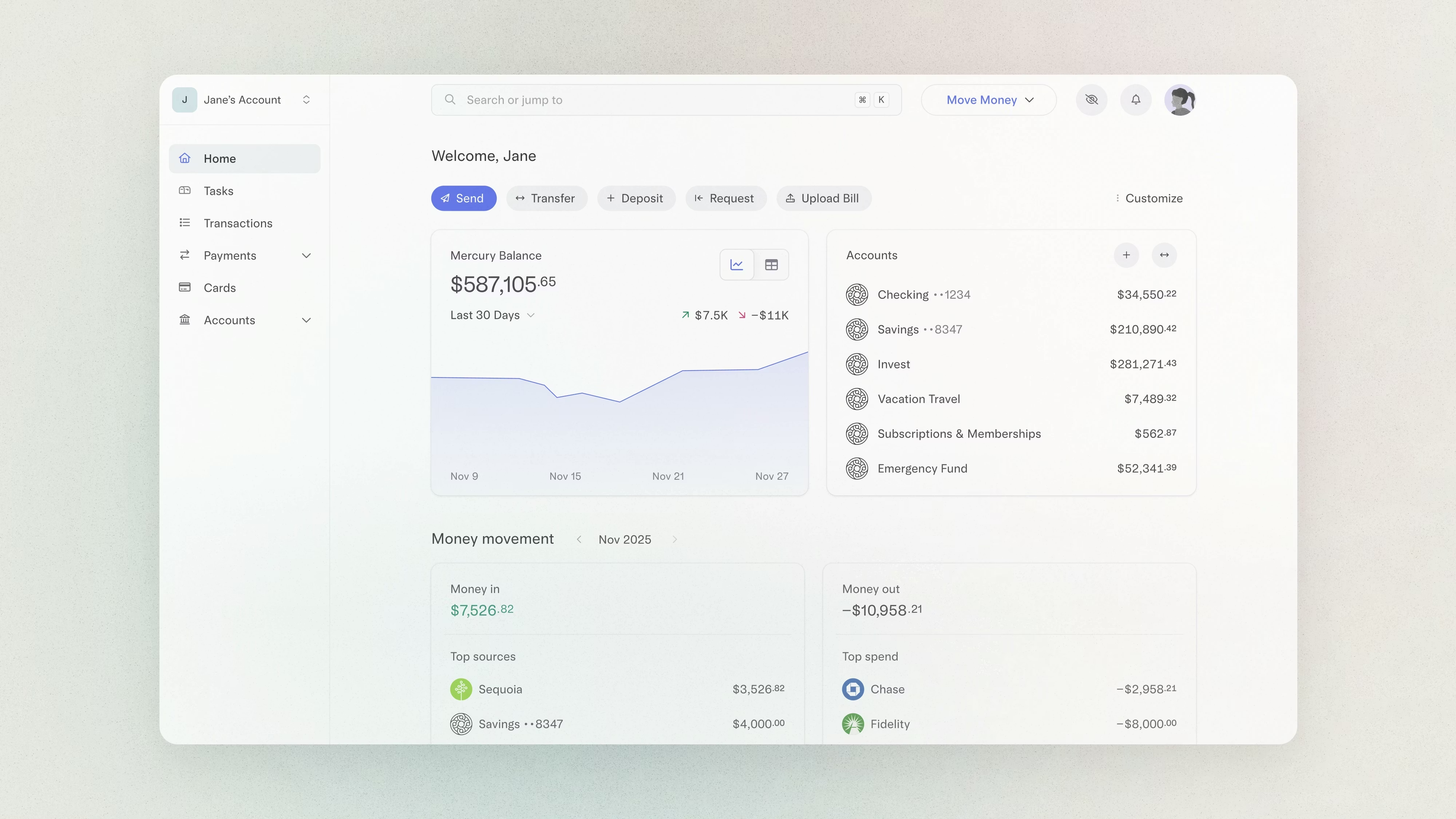
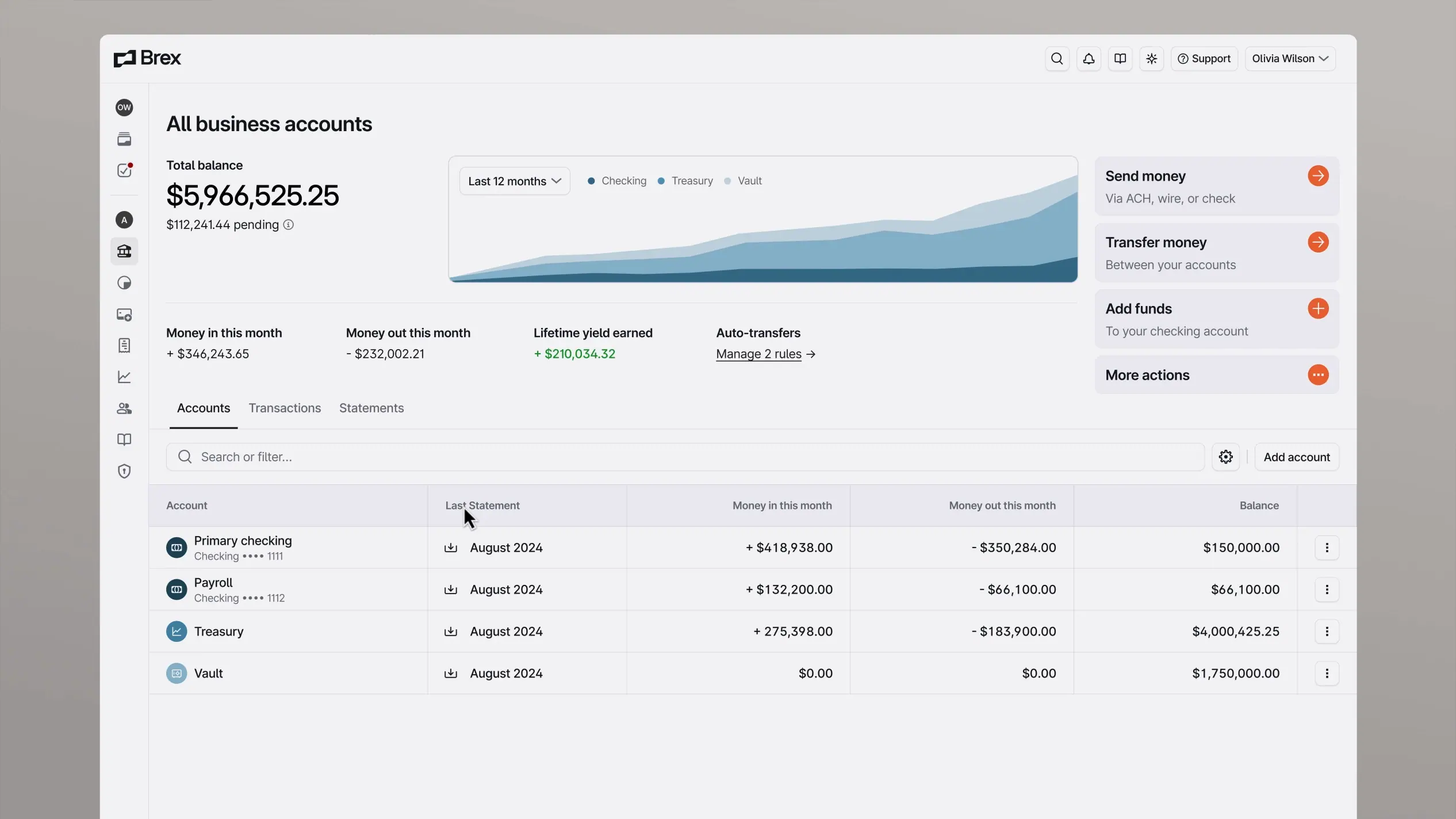
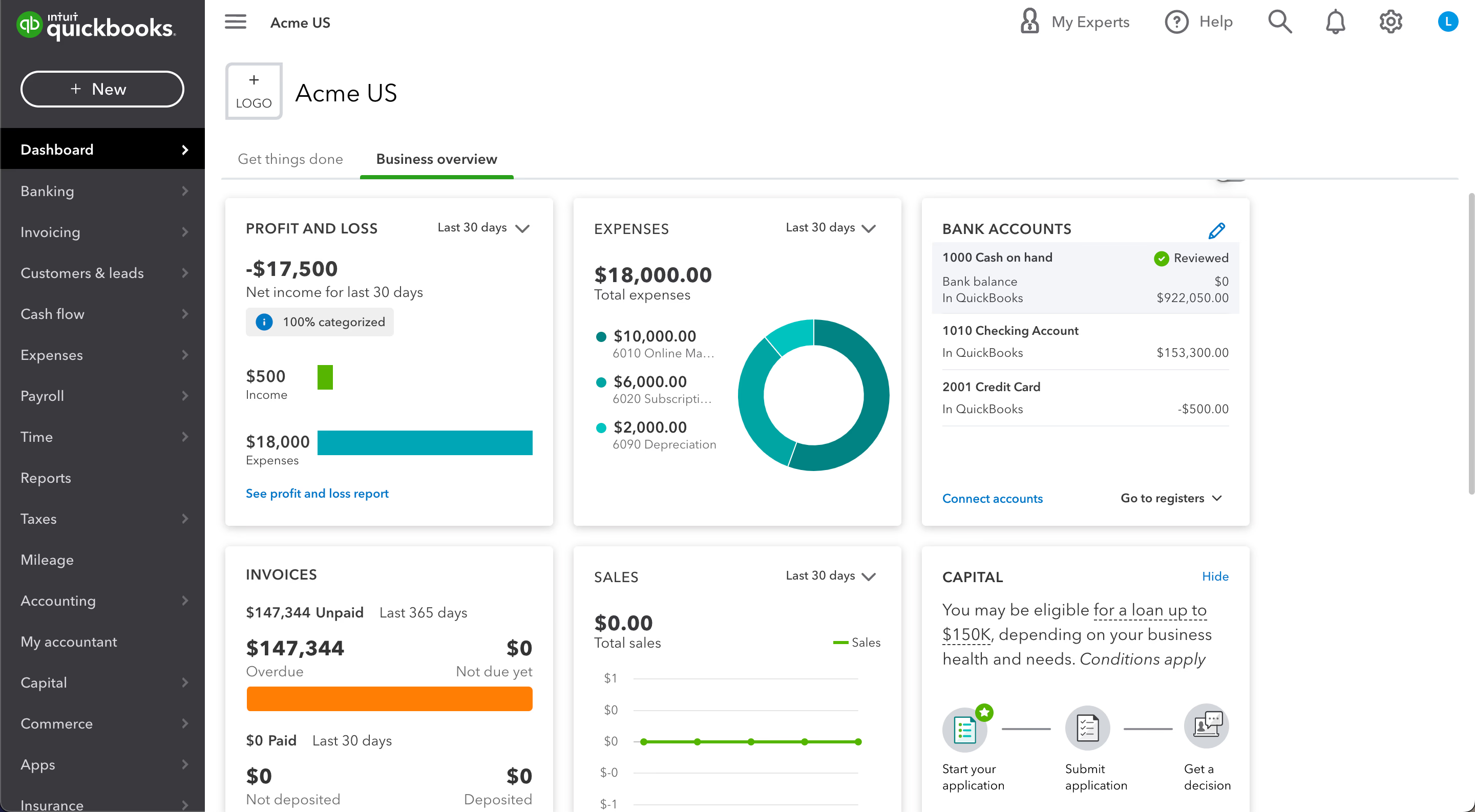
I audited Stripe Dashboard, Mercury, Brex, and QuickBooks to map what each does well and where they fall short for finance leaders who need strategic, not transactional, visibility.

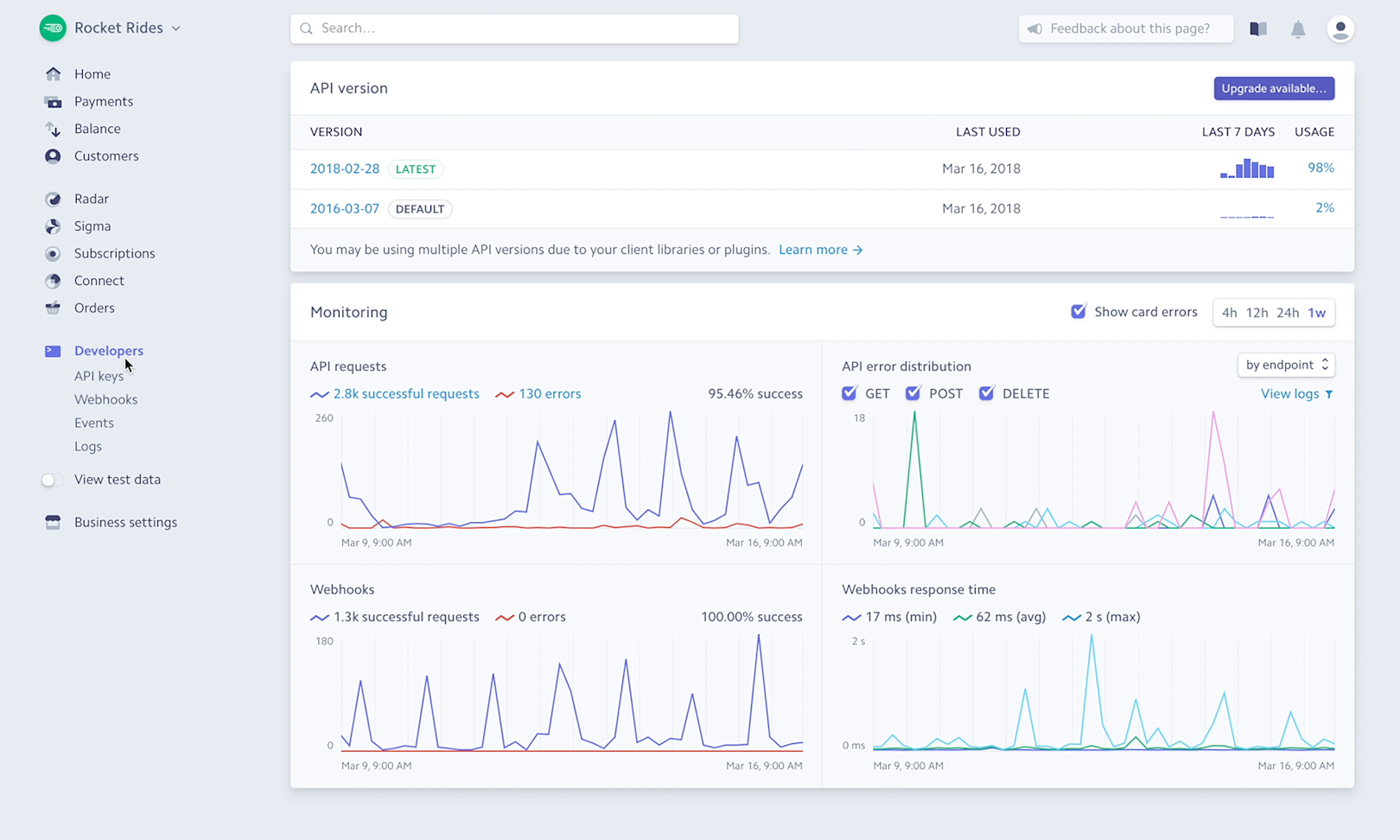
Stripe Dashboard screenshot

Stripe Dashboard

Developer-first. Clean visual language and real-time data, but built for payment ops, not finance strategy.

Mercury dashboard screenshot

Mercury

Best-in-class visual clarity and balance visibility. Strong for early-stage, but limited forecasting and reporting depth.

Brex dashboard screenshot

Brex

Good spend visibility and policy controls. Dense navigation structure creates orientation challenges for new users.

QuickBooks dashboard screenshot

QuickBooks

Feature-rich and accountant-optimized. High cognitive load for non-accounting users. Weak on executive-level summary.

Criteria Stripe Mercury Brex QuickBooks Numera
Information Density Medium Low to Medium High Very High Calibrated
Visual Clarity Strong Excellent Good Weak Strong
Onboarding Experience Moderate Good Moderate Complex Progressive
Customisation Limited Limited Moderate High Role-based

Research & Discovery

User Personas

Two distinct users share the same product, but with fundamentally different jobs to be done. Designing for both without compromising either drove many of the core interface decisions.

SC

Sarah Chen

CFO · 120-person SaaS company

Strategic

Background

10 years in finance, previously VP of Finance at two Series B companies. Manages investor relations, board reporting, and long-range planning. Attends 3 board calls per month.

Primary Goal

Board-ready data in 2 clicks. Runway and burn rate above all else. These two numbers tell her whether this quarter's strategy needs to change before the next slide deck is built.

Pain Points

  • Spends 45+ min per week manually pulling numbers into board decks
  • Current tools require accounting knowledge to extract executive-level insight
  • No single view of cash position, forecast, and actuals in one place

"I don't need to see every transaction. I need to know if we're on track before I open my laptop in the morning."

MR

Marcus Reid

Finance Manager · 60-person e-commerce company

Operational

Background

5 years in operations finance. Handles day-to-day bookkeeping, vendor invoicing, and expense categorisation. Processes an average of 247 transactions per month. Reports directly to the CFO.

Primary Goal

Speed and accuracy of transaction processing. Every miscategorised expense creates downstream problems in the report his CFO presents to the board. He needs to categorise fast and trust the result.

Pain Points

  • Recategorising a single expense takes 3 modal interactions in current tools
  • Vendor payment status is scattered across email threads and the bank portal
  • Friday report generation takes 2 to 3 hours of manual data assembly

"If it takes more than two clicks to fix a category, I'm going to make a mistake eventually. It's not a question of if."

Research & Discovery

User Journey Map

Marcus's weekly workflow, from Monday morning cash flow check to Friday report generation, mapped against friction points that Numera was designed to eliminate.

MON

Cash Flow Check

8:00 AM · ~35 min

Action

Log in to bank portal, export CSV, paste into master spreadsheet, rebuild weekly cash position manually.

Friction

3 different logins. CSV formatting changes without warning. 20 minutes before any real analysis begins.

Numera Response

Cash position, runway, and weekly delta visible on load. Zero CSV exports. 0-click answer.

WED

Expense Review

Midweek · ~90 min

Action

Open each transaction, determine correct cost centre, navigate to category modal, select, save. Repeat 50 to 80 times.

Friction

3 clicks per transaction. Modal closes after each save. Context is lost between entries. Misclicks are common.

Numera Response

Inline category dropdown. 1 click per transaction. Table stays open. Bulk editing for recurring vendors.

FRI

Report Generation

End of week · ~2 to 3 hrs

Action

Pull data from bank, accounting tool, and payroll. Merge into slide deck. Check figures against prior week. Send to CFO.

Friction

Data from 3 sources with different refresh times. Manual reconciliation. High risk of version errors sent to leadership.

Numera Response

One-click report export. All data live and pre-reconciled. Consistent format the CFO can share directly.

Design Process

From rough to resolved

01 · Information Architecture

Navigation Structure & Content Hierarchy

Numera App
Dashboard
KPI Cards
Revenue Chart
Cash Flow
Quick Actions
Expenses
Transaction List
Categories
Vendors
Reports
Cash Flow Report
P&L Summary
Export
Forecast
Runway Model
Scenarios
Integrations
Bank Sync
Payroll
ERP
Settings
Team & Roles
Notifications

02 · Key Screens

Screen 1, Dashboard overview

Dashboard Overview

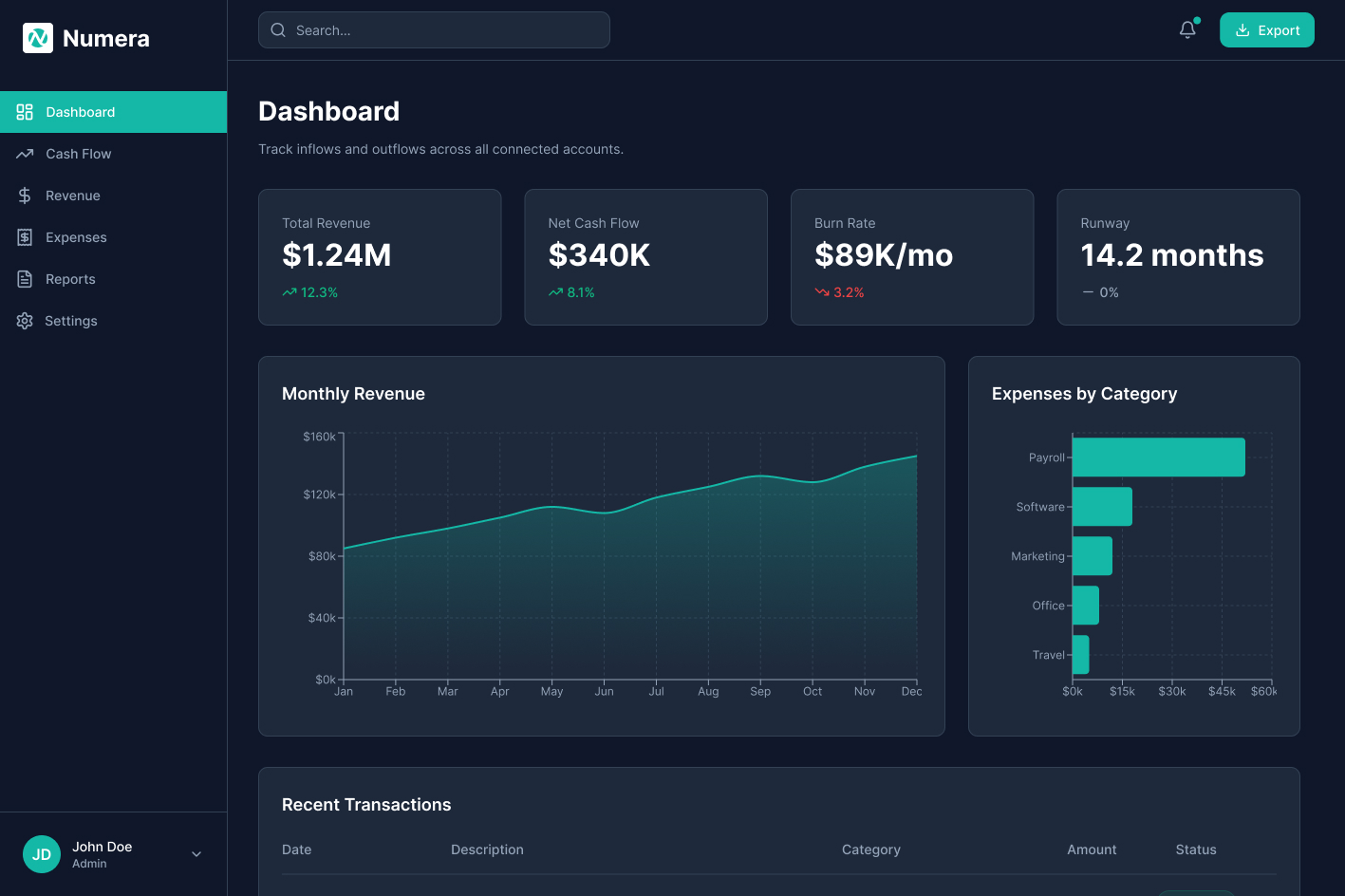
KPI cards above the fold, revenue chart in the mid-tier, transaction table below. Priority hierarchy locked in from the first scroll.

Screen 2, Revenue Analytics

Revenue Analytics

Time-series chart with period selector. Teal accent on data visualisations creates consistent contrast against the dark surface at any zoom level.

Screen 3, Expense Table

Expense Table

Core

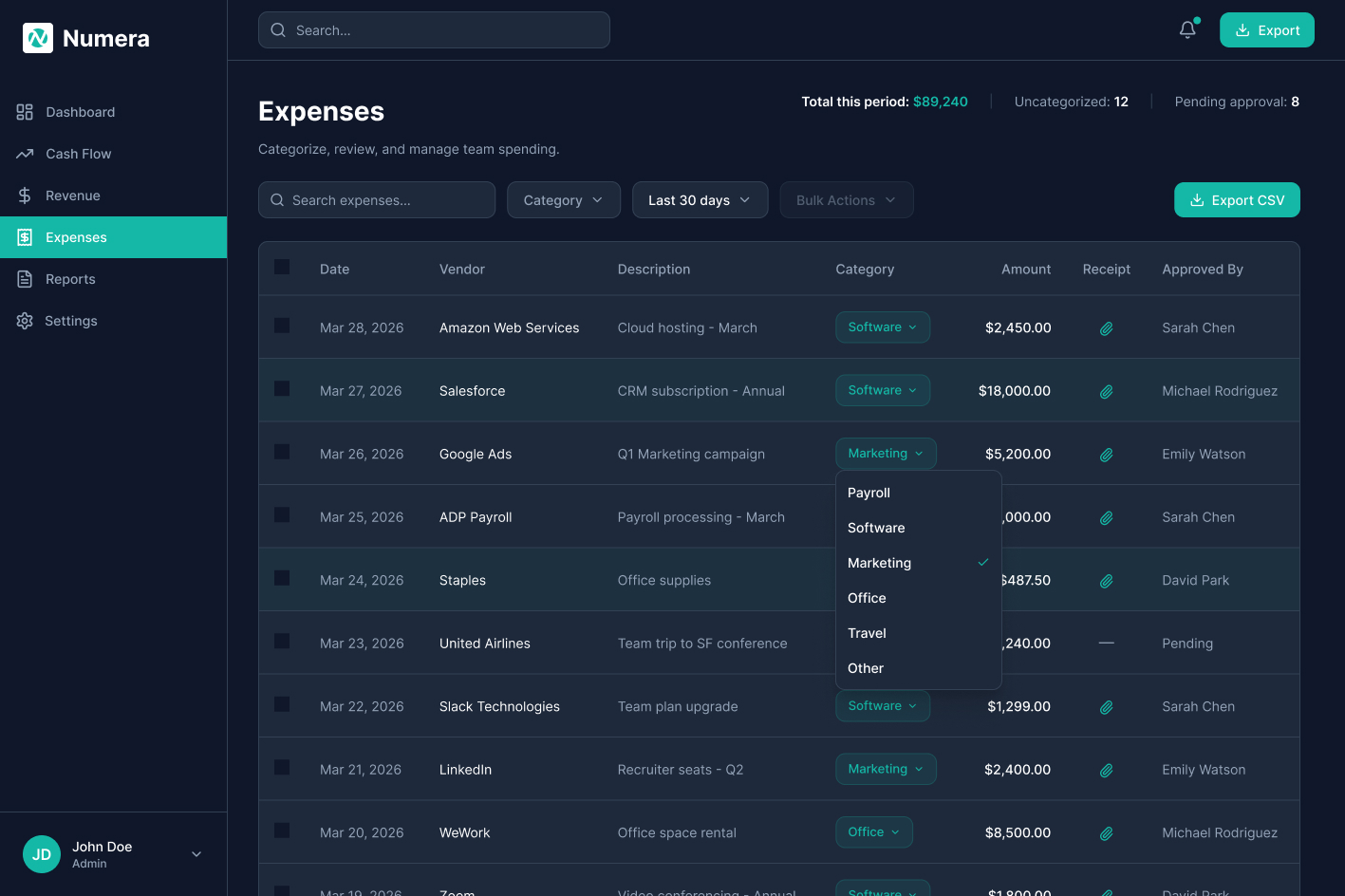
Inline category dropdown. Single-click interaction replaces the 3-click modal flow. Category chips use colour coding to support fast scanning across 200+ row sets.

Design Process

High-Fidelity Screens

12 screens covering the full product surface, from executive overview to onboarding flow. Each screen is annotated with the key decision it embodies.

Screen 1, Dashboard Overview
Screen 1, Dashboard overview

Screen 1. Dashboard overview. KPI cards above the fold, revenue and cash flow charts in the middle zone, recent transactions at the bottom. The three-row hierarchy matches the two user types: executives read top to bottom and stop when satisfied; managers continue to the table.

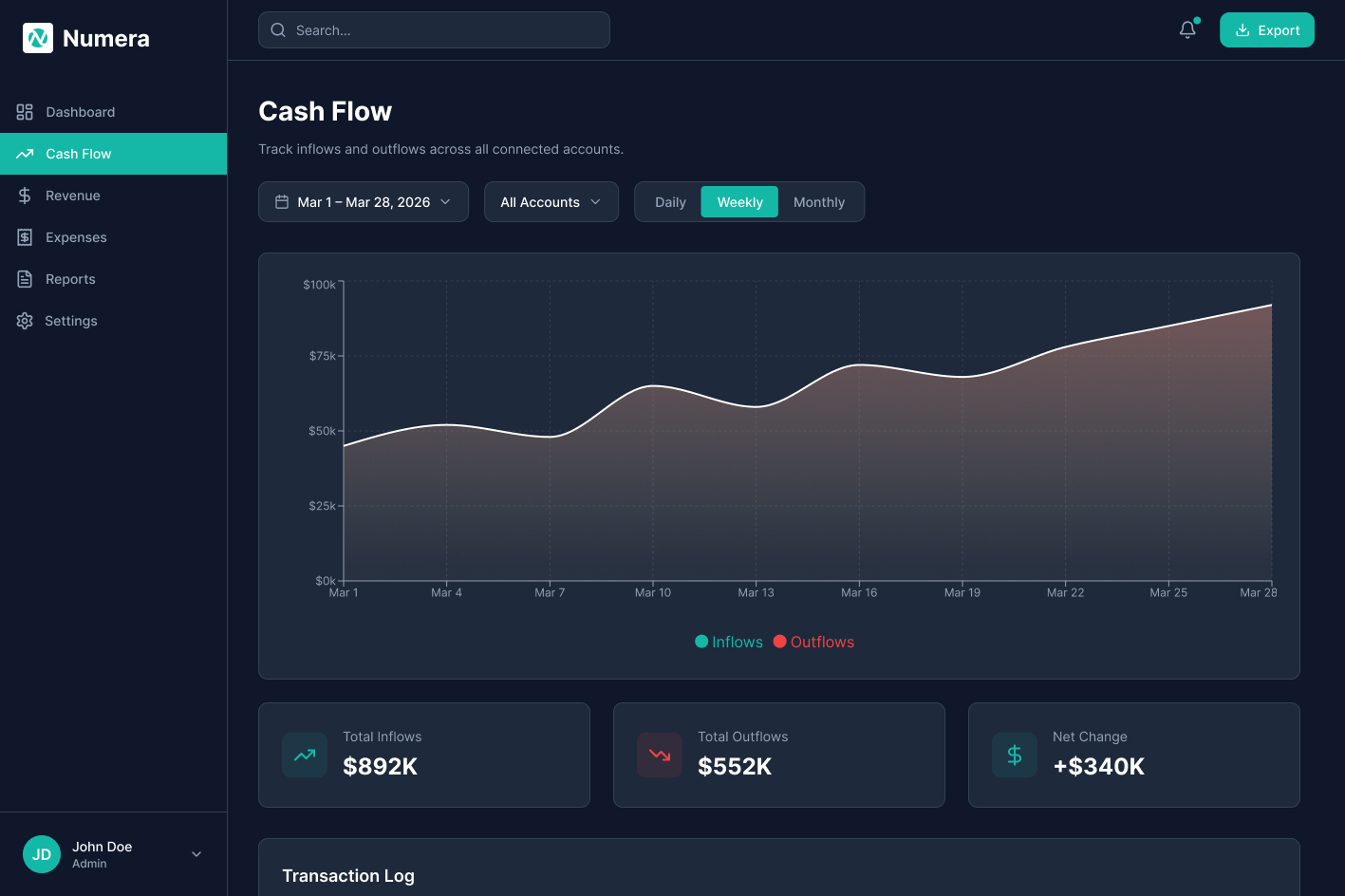
Screen 2, Cash Flow
Screen 2, Cash Flow

Screen 2. Cash Flow. Inflows and outflows tracked week by week with Daily, Weekly, and Monthly toggles. Summary cards beneath the chart show Total Inflows, Total Outflows, and Net Change, a quick read before drilling into the Transaction Log below.

Screen 3, Revenue Forecast

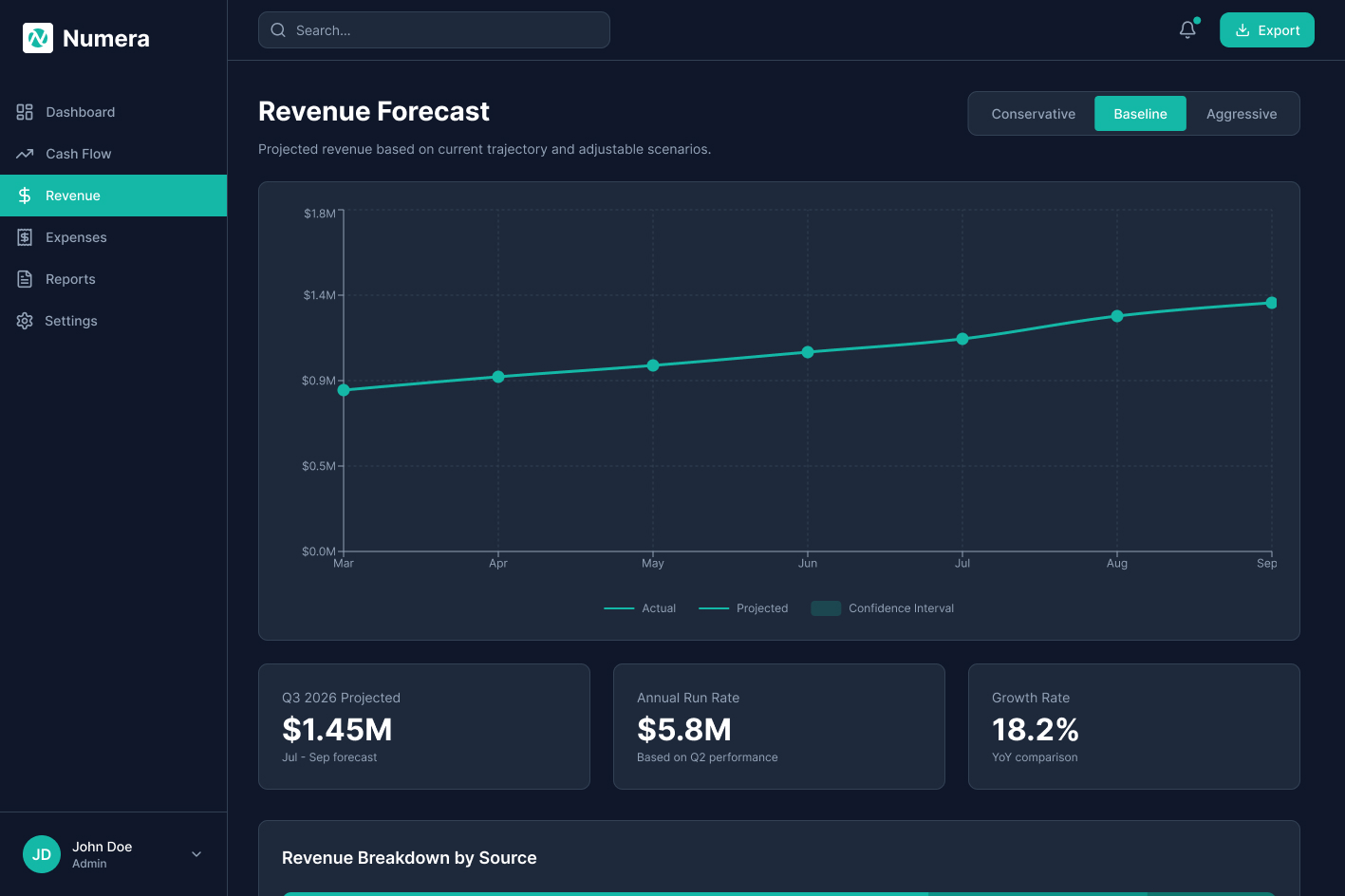
Screen 3. Revenue Forecast. Projected vs. actual overlaid with a confidence interval band. Conservative, Baseline, and Aggressive scenario toggles let teams stress-test assumptions without touching a spreadsheet. Summary cards show Q3 projected revenue, annual run rate, and YoY growth rate at a glance.

Screen 4, Expenses
Screen 4, Expenses

Screen 4. Expenses. Full expense table with inline category assignment via single-click dropdown, replaces the 3-click modal flow. Uncategorized count and pending approvals surfaced in the header so nothing falls through the cracks before month-end.

Screen 5, Settings / Integrations

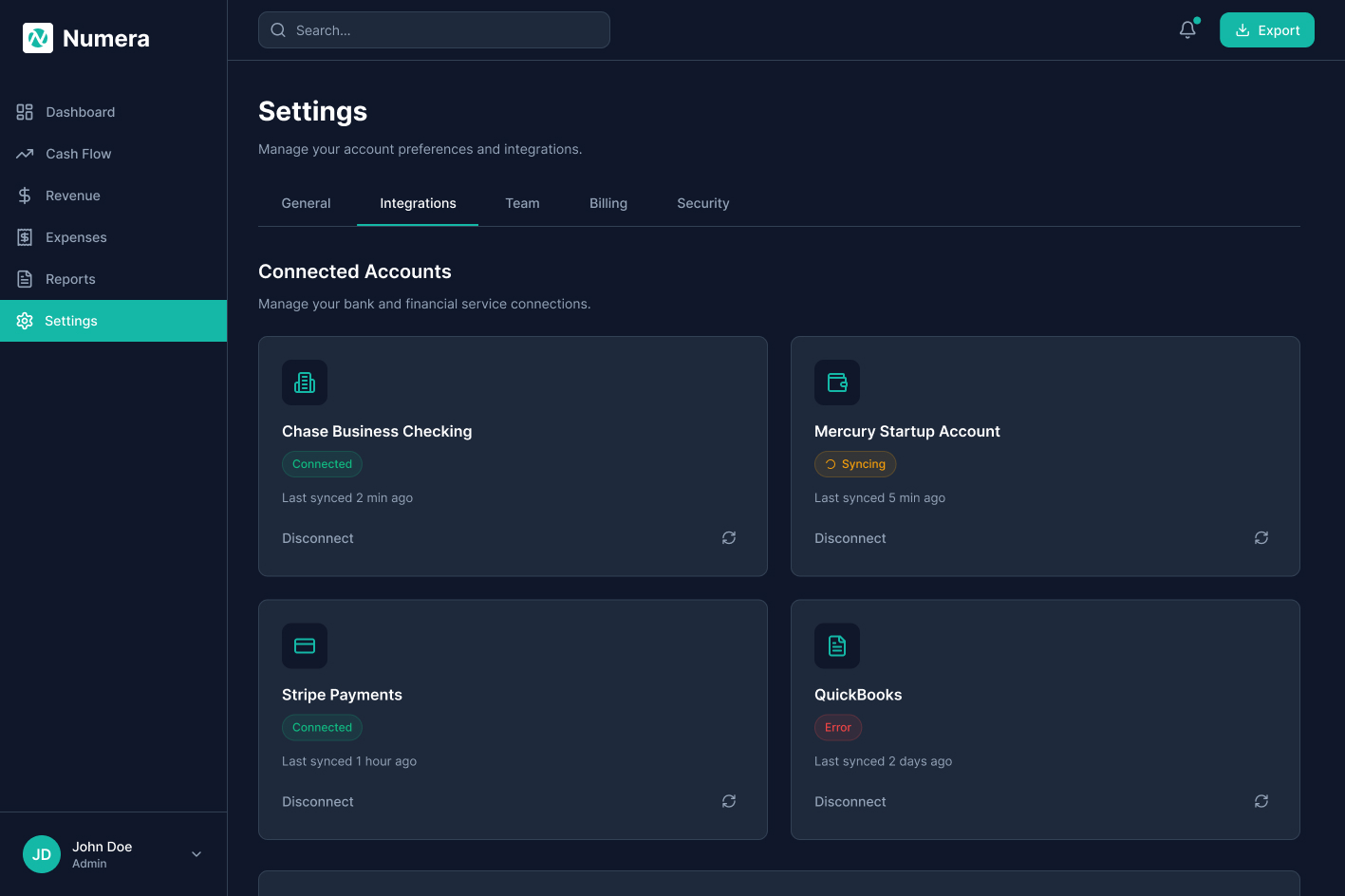
Screen 5. Settings, Integrations. Connected accounts panel showing live sync statuses for each bank and payment service. Chase is live, Mercury is syncing, Stripe is connected, QuickBooks shows an error, all visible at a glance without leaving the app.

Screen 6, Empty State
Screen 6, Empty state

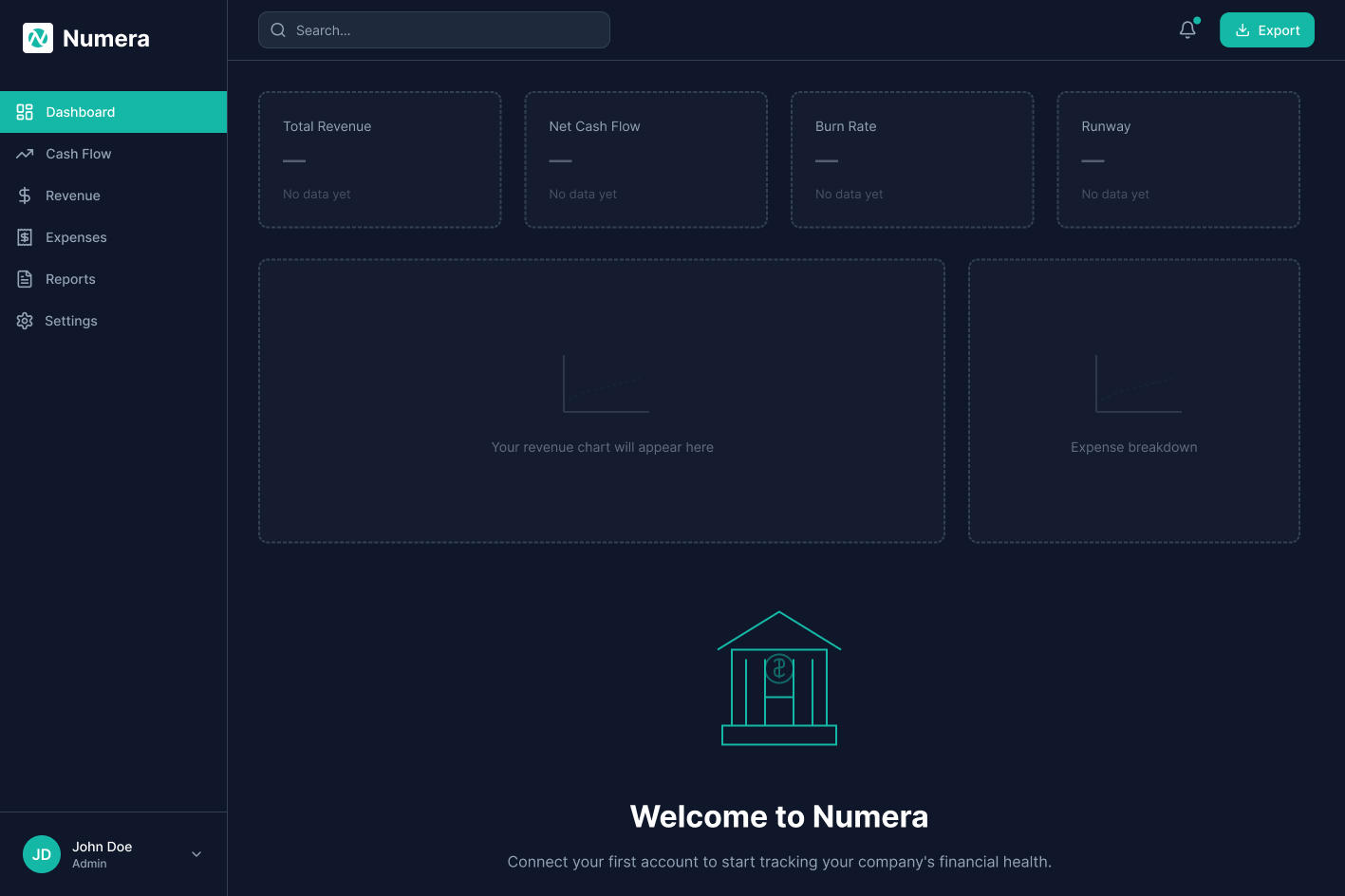
Screen 6. Empty state. New account, no connected bank. Single CTA, skeleton KPI cards so layout feels familiar before data exists.

Screen 7, Loading State
Screen 7, Loading state

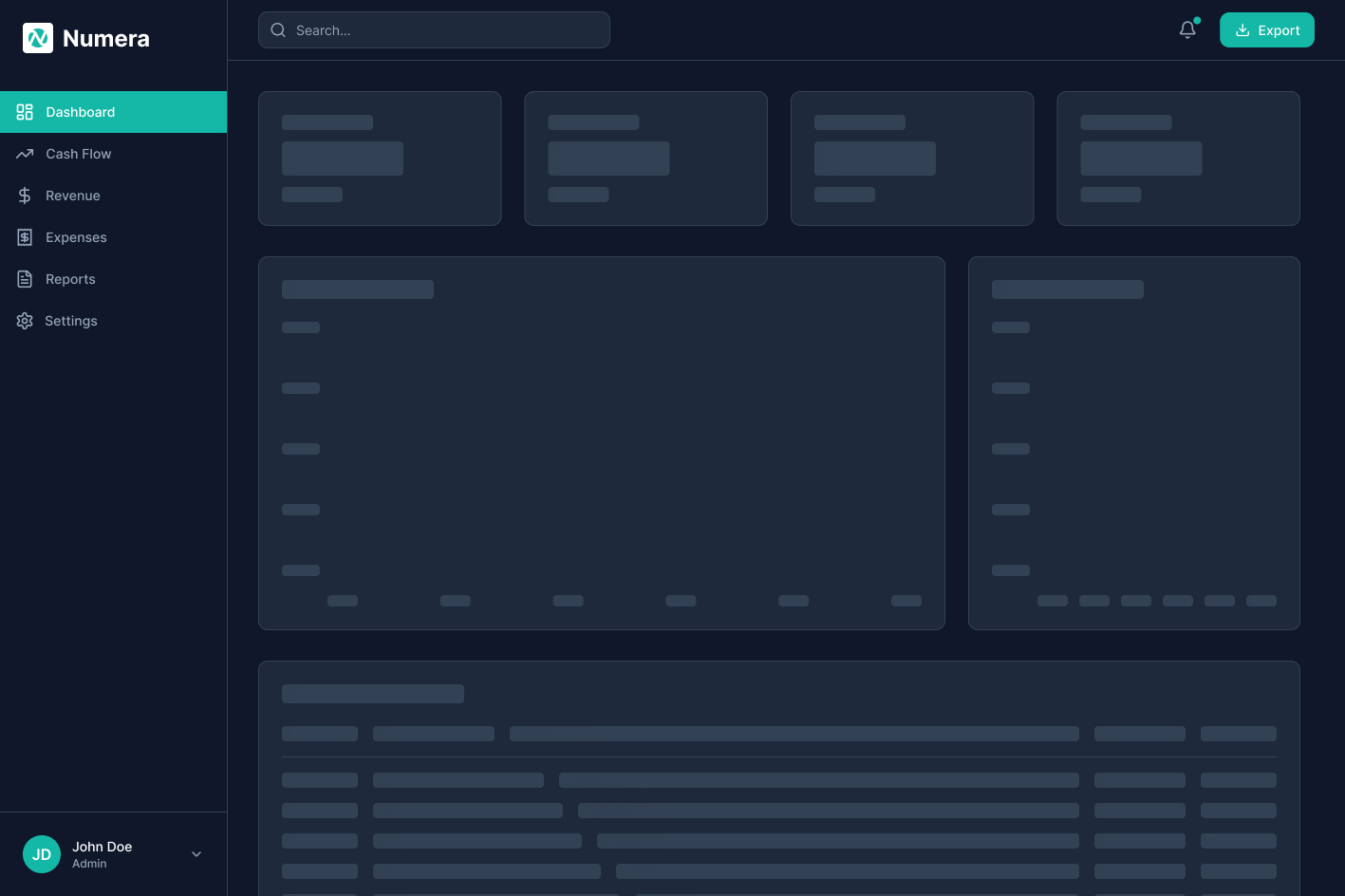
Screen 7. Loading state. Skeleton shimmer placeholders match exact positions so layout stays stable. "Syncing with [Bank]…" label communicates what's happening.

Screen 8, Error State
Screen 8, Error / connection failure state

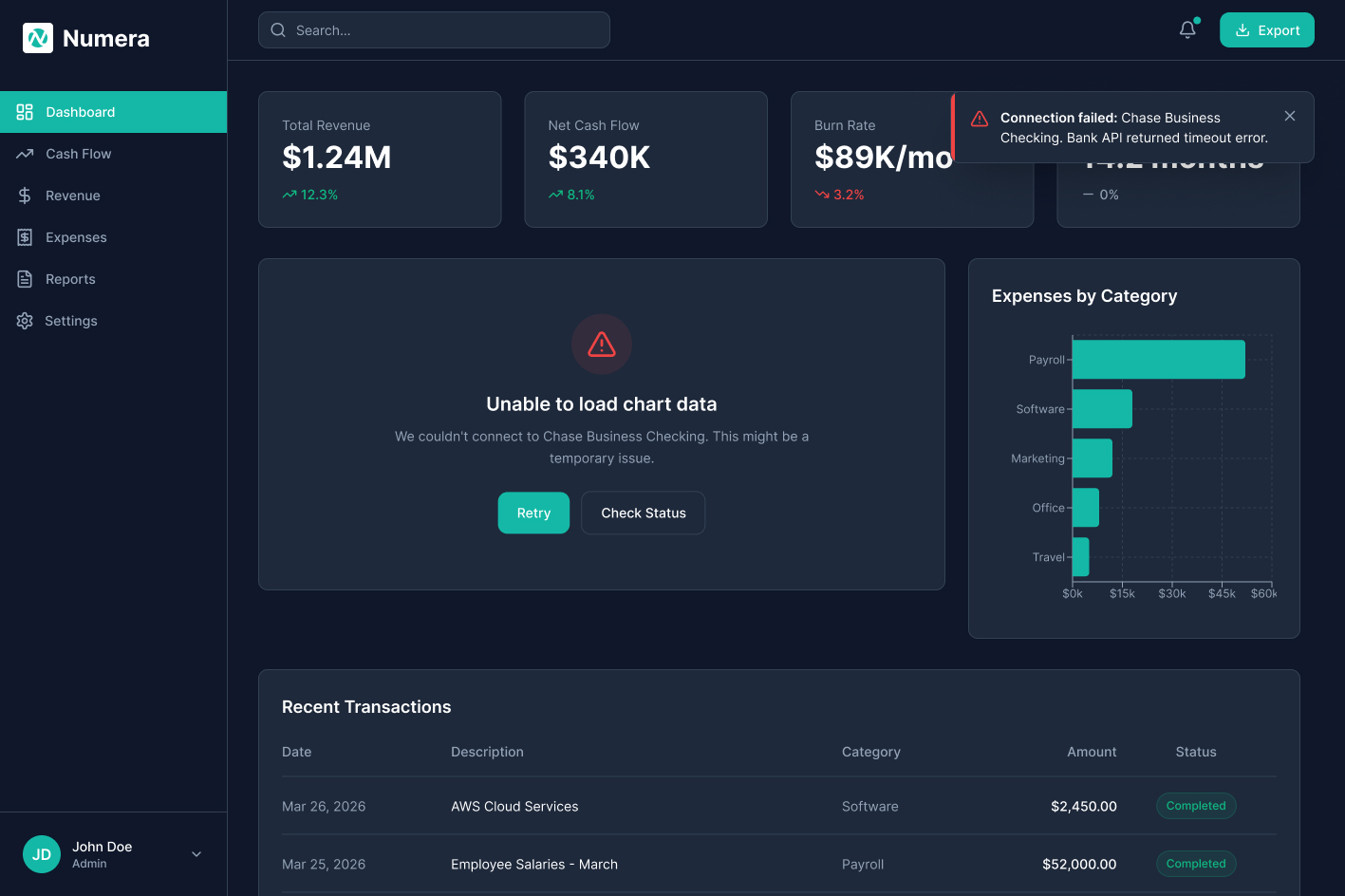
Screen 8. Error state. Non-blocking banner specifies which account failed and why. Last-known data stays visible so work continues. "Retry" and "Check Status" CTAs give users two clear recovery paths without forcing a full page reload.

Screen 9, Onboarding: Connect Account

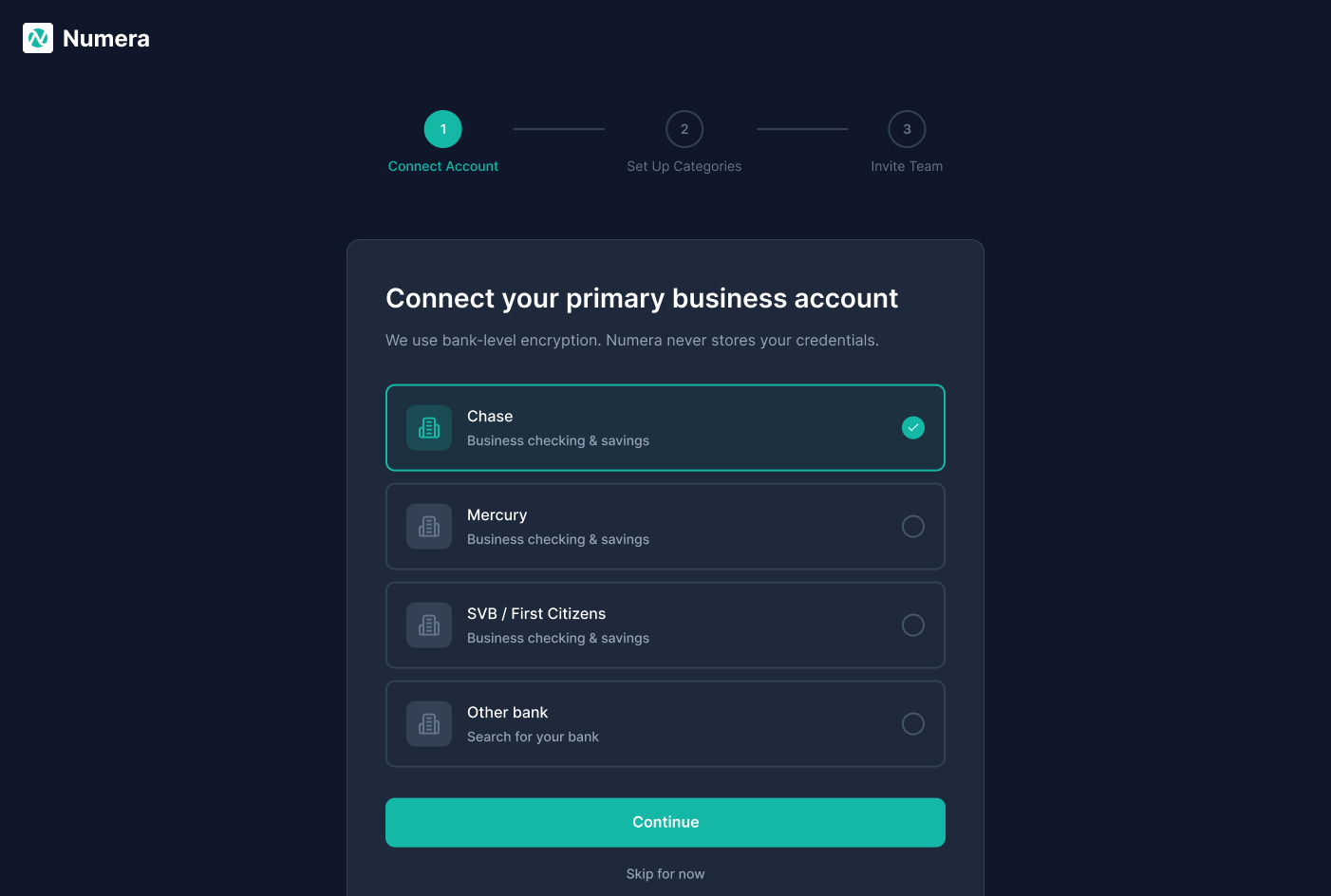
Screen 9. Onboarding Step 1, Connect Account. Bank selection list (Chase, Mercury, SVB, Other) with a bank-level encryption reassurance. A Skip option lets teams explore the product before committing credentials.

Screen 10, Onboarding: Set Up Categories

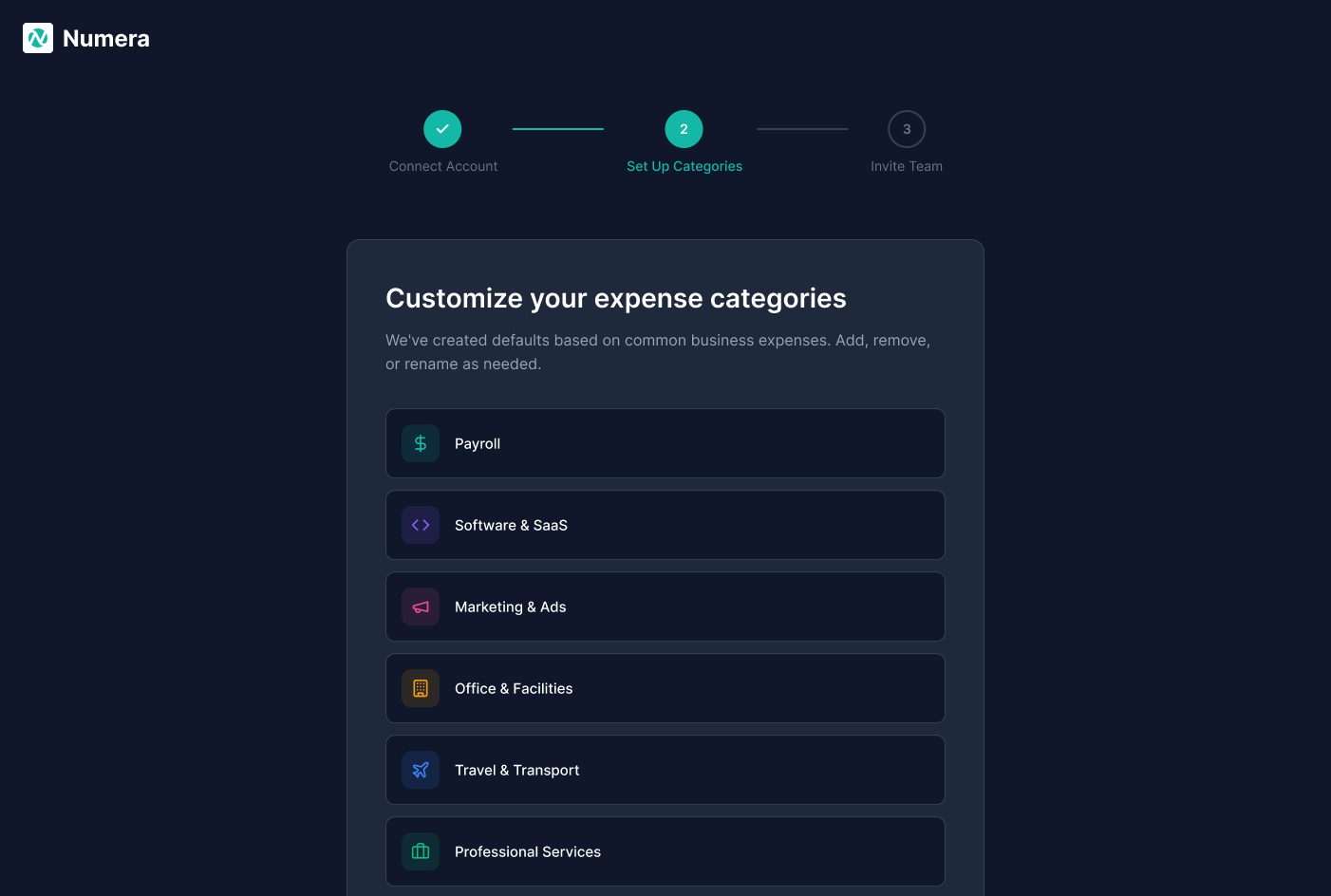
Screen 10. Onboarding Step 2, Set Up Categories. Pre-built expense defaults (Payroll, Software & SaaS, Marketing, Office, Travel, Professional Services) drawn from common business spending. Users can add, remove, or rename categories before any transactions are imported.

Screen 11, Onboarding: Invite Team

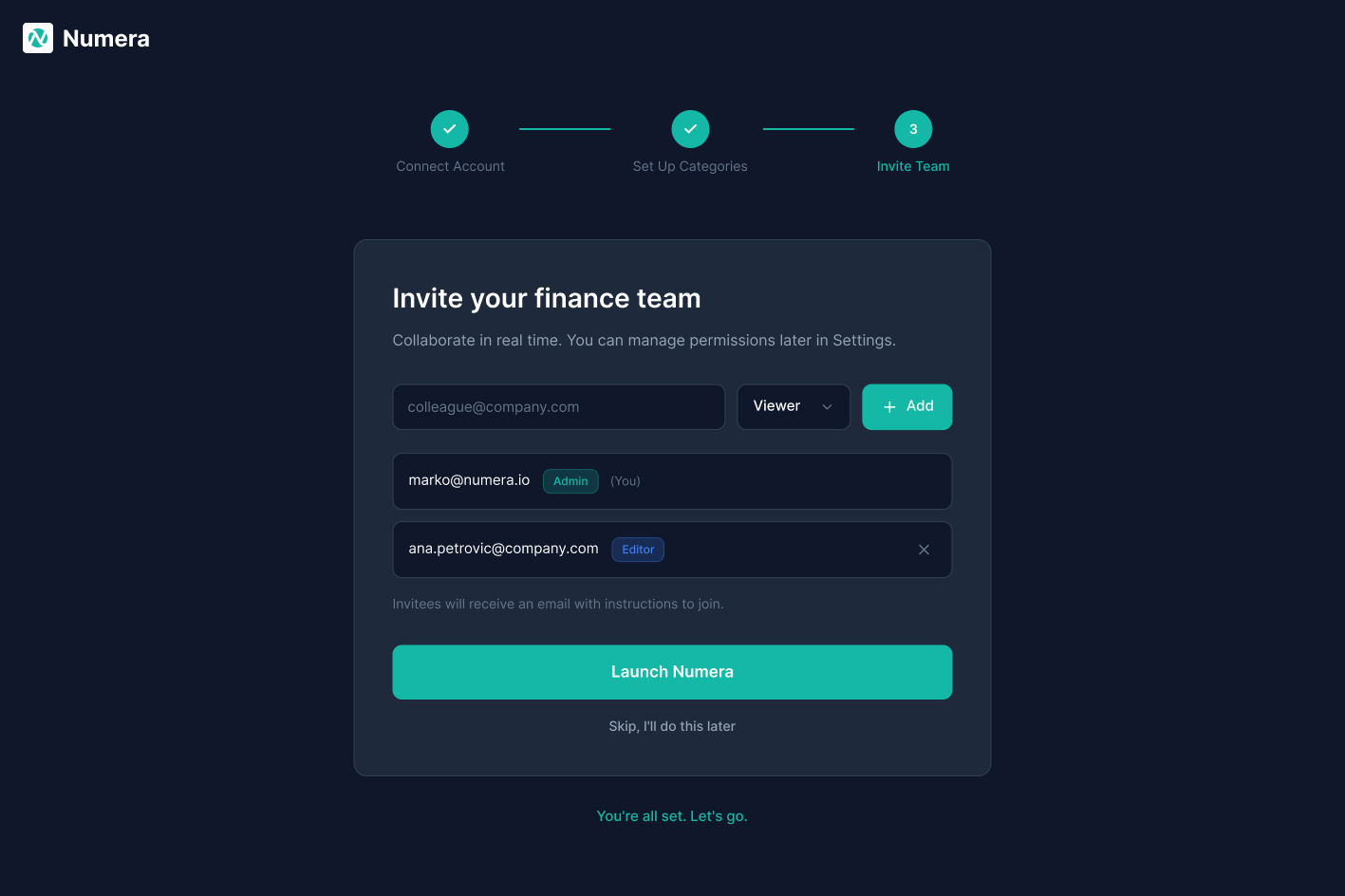
Screen 11. Onboarding Step 3, Invite Team. Role assignment (Admin, Editor, Viewer) at invite time. Invitees receive an email with instructions to join. The Launch Numera CTA only appears once all three setup steps are complete.

Screen 12, Tablet View
Screen 12, Tablet responsive layout

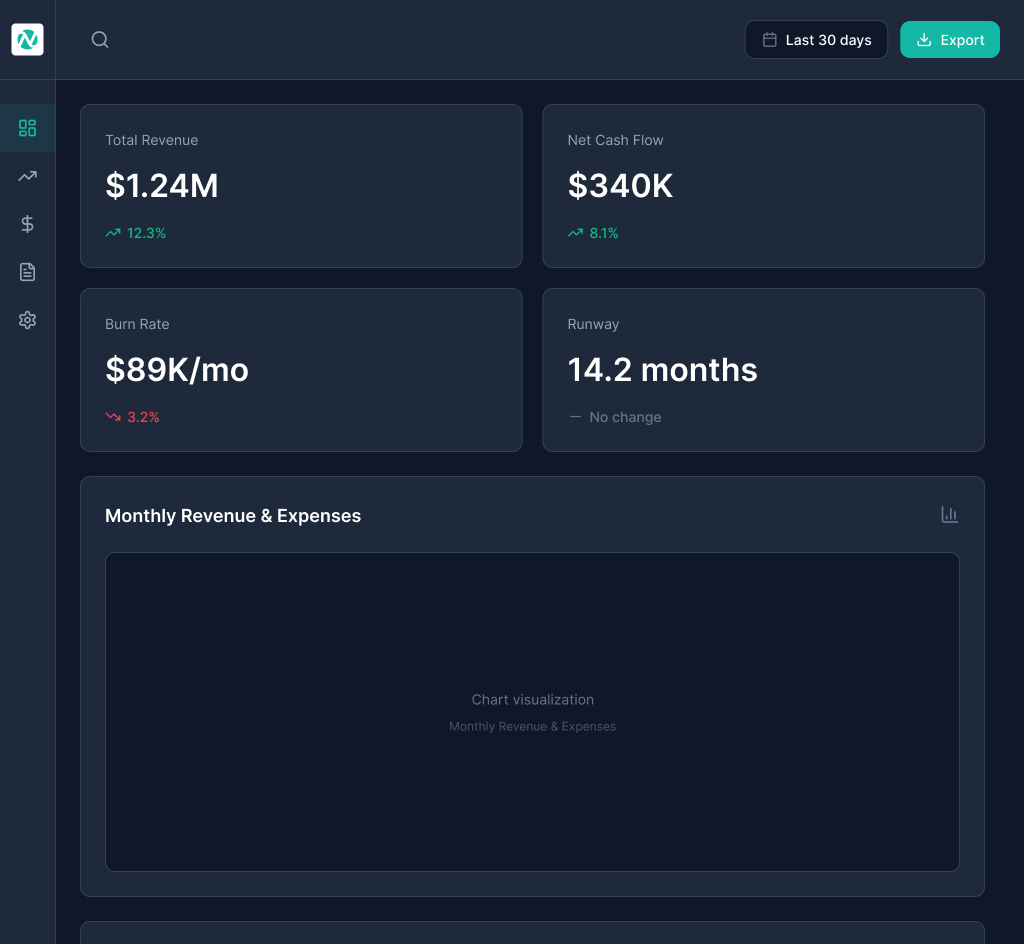
Screen 12. Tablet layout: sidebar collapses to an icon-only rail, KPI cards reflow to a 2×2 grid, and the chart row stacks vertically. Full informational parity with desktop in a touch-first layout.

Design Decisions

Four choices that shaped the product

01

Dark theme

Finance dashboards are used in long sessions: early morning runway checks, late-night month-end closes. A dark surface reduces eye strain and lets data visualisations stand out with high contrast. Teal (#2DD4BF) was chosen for its visibility against dark backgrounds and its association with trust and precision, distinct from the greens used for positive states.

#2DD4BF · Teal Accent
#0F1117 · Surface
#1A1D23 · Card
02

KPI cards above the fold

CFO interviews surfaced the same request: the four numbers that matter most should be visible without scrolling or clicking. Cash Balance, Monthly Burn, Runway, and MRR form a real-time executive summary above the fold. Each card shows a delta vs. prior period using directional arrows and colour, so the answer registers before the number is fully read.

03

Inline expense editing

The old flow required 3 to 5 actions to recategorise a single transaction. An inline dropdown in the table row cuts that to one click. At ~250 transactions per month per Finance Manager, that compounds into real time savings and far less context-switching.

Before: 5 interactions

  1. 1. Click transaction row to open
  2. 2. Locate "Category" field
  3. 3. Click to open modal
  4. 4. Select new category
  5. 5. Confirm & close modal

After: 1 interaction

  1. 1. Click category chip in table row
  2.  
  3.  
  4.  
  5.  
04

Progressive onboarding

Three steps, one action each: connect your bank, configure categories, invite your team. Every step can be skipped so explorers aren't blocked. Users who commit get full setup; users who aren't ready still land in a usable product. Depth reveals itself over the first week.

Responsive Design

Desktop to tablet

Finance decisions don't always happen at a desk. CFOs review runway numbers from a meeting room iPad, finance managers approve expenses from a tablet during travel. The tablet layout retains the full information hierarchy of the desktop view through deliberate structural adaptations, not a simple reflow of the same grid.

Desktop, 1440px · Screen 1
Desktop dashboard, 1440px

Desktop layout

Persistent left sidebar with full text navigation labels and section groupings

4-card KPI row spans the full content width above the fold

Revenue and cash flow charts rendered side-by-side in a 2-column mid-tier

Transaction table spans full width with all columns visible

Tablet, 768px · Screen 12 Adapted
Tablet dashboard, 768px

Tablet adaptations

Sidebar collapses to an icon-only rail, labels hidden, touch targets enlarged

KPI cards reflow to a 2×2 grid, each card retaining delta indicators and sparklines

Charts stack vertically to full width. No information is removed, only reordered.

Transaction table prioritises key columns; secondary columns hidden behind a row tap

Design Principles Applied

No information loss

Every data point available on desktop is accessible on tablet. The layout adapts, the content does not shrink.

Touch-first targets

All interactive elements meet a 44px minimum tap target. Inline editing remains available via a tap-to-edit pattern.

Hierarchy preserved

KPI cards remain above the fold on tablet. The executive-first priority of the desktop layout is maintained across breakpoints.

Results & Impact

Projected outcomes

As a concept project, impact is measured against industry benchmarks and research-validated design standards rather than live analytics data.

0

Clicks to key metric

Designed to reduce time-to-key-metric from the industry average of 4 clicks to 0. Visible on load, no navigation required.

85%+

Est. onboarding completion

3-step progressive onboarding structured to match benchmark completion rates for similar B2B SaaS sequences with skippable steps and value-first flow.

35+

Component variants

Component library of 7 core components with 35+ variants (KPI cards, data tables, charts, status badges, modals, form inputs, and nav elements) enabling consistent design at scale.

Time Saved

Inline expense editing at 1 interaction vs. 5 saves an estimated 30 minutes per week for a Finance Manager processing 247 transactions monthly, over 26 hours per year.

Report Generation

Pre-built report templates target a reduction in Friday report generation from 2 to 3 hours to under 10 minutes by eliminating manual data assembly across multiple tools.

Design System

A production-ready component library means future feature additions maintain visual and interaction consistency without requiring design review for every new screen.

Reflection

What I would do differently

With More Time

Usability testing with real Finance Managers processing live data. The inline editing and table density decisions carry assumptions about scanning behaviour that even three moderated sessions would sharpen considerably. I would also build out proactive alerts: runway warnings, budget threshold triggers. The current design surfaces data reactively; finance leaders often need to be pulled toward a problem.

What I Learned

Designing for two user types in one product is not a layout problem. It is a hierarchy problem. The temptation is two separate views. The real challenge is one layout where both users feel it was built for them. The answer is information layering: what is visible immediately, what requires a click, what requires navigation. That hierarchy question is the core design problem of Numera.

CodeLion SaaS

Next project

CodeLion SaaS →

Engineering a frictionless onboarding pipeline. Transforming an established development agency into a scalable SaaS platform with end-to-end user experience.